Showing posts with label user program. Show all posts

Monday, November 5, 2012

Developing a Developer


Hello readers.

In this post I'm going to announce something special. I want to make a little game. It's going to be a small thing, but it's because I promised a friend to make one, and I have to fulfil my promises. It's also the perfect excuse to catch up with this beautiful hobby.

This is mainly a training project. I'll write posts in a journal entry style. That way you can track my progress.

I've divided this project in four phases:
1) The Basis
2) The Tools
3) The Experiments
4) The Games

PHASE 1: The Basis

I'll try to restore the knowledge about game programming I had in the past. It's basically reading this book:


“Invent Your Own Computer Games with Python ” is a free ebook. It's oriented to children that want to make computer games but don't know how to program. When I finished my first programming course (it lasted a year) I realized that I knew many algorithmic things. I knew how to search items in lists, storing integer in arrays, import libraries... It was a very good improvement taking into account that I started without knowing anything about programming. Nevertheless, I didn't know how to do something actually useful. And games... well, it's sort of what we all think of, don't we? So that summer, I found this book and read it. After that I made two simple games, but they were lost one sad day when I accidentally erased all the information in my hard-drive.

PHASE 2: The Tool

It's learning more about game programming but it will be mainly using the Pygame library. Actually, this phase is yet another excuse to read the sequel of the previous book: 
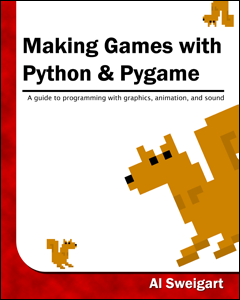


I have no idea what it's going to contribute to my knowledge, but I had so much fun reading the first one that I have to read it now.

PHASE 3: The Experiments

This phase it's probably going to be a little bit more chaotic. I'll make a kickoff game that doesn't take a lot of time. Let's see how it goes. I'll also read a few open source programs to take knew ideas. I also may do this kind of things after reading the first book.

PHASE 4: The Game

I'll program the game. I have no idea how long this phase is going to take me. Maybe two weeks? Three? A month and a half? I have an idea about how it's going to be, but I have no idea how I'm going to be posting about it without spoiling the argument. We'll see.

 

Monday, October 29, 2012

Setting up a Gmail account in Mozilla Thunderbird

I write this post in order to share my experience with my Gmail account in Thunderbird.

The first problem I faced involved contacts. When I wrote my first message, I didn't enjoy the comfort of predictive contact suggestion (because I hadn't any contacts stored on my local machine). I solved it through a plugin: Zindus. Zindus syncronizes your contacts between Thunderbird and Google Contacts. Its use is pretty straightforward. Once you've installed the plugin, you go to the “tools” menu and select “Zindus”. Then add your gmail account, select the convenient options and click on “Sync Now” before you finish. VoilĂ . Contacts loaded, suggestions enabled.

The second thing I missed was the conversation thread-style that Gmail provides. I installed another plugin again: ThreadVis. It works like a charm. In fact, it has a fun feature that Gmail doesn't have: a timeline of the conversation. The following picture is an example of what I'm talking about:


In the picture, the empty circles represent my messages. The filled ones refer to other participants in the conversation (one color per participant). The separation between each circle represents the time it has passed between each message.

I also changed the relative position of the reply to the quote. The settings by default put the reply bellow the quote. This is not the way Gmail behaves and I found it a little bit confusing and counterintuitive. In order to change this go to “Edit > Account Settings... > Compositing and Addressing”. On the window you shoud see a checkbox that says “Automatically quote the original message when replying”. Check it if it isn't. Below that checkbox, you can select the following option from the drop-down list: “start my reply above the quote” and, if you use a signature, you can also select where to place it. It works, but you have to place an enter between the reply and the quote, otherwise Gmail won't hide the quote.

Finally, I set up my Google Talk account. Everything works fine. However, there are a few things that I haven't been able to fix and that I miss:
  • Sync Gmail labels with Thunderbird. Maybe there's a way, but I haven't been able to do so. Here, people say it's impossible:
    http://superuser.com/questions/48591/how-do-i-synchronize-thunderbird-tags-with-gmail-labels
    Nevertheless, the message is old. Perhaps, this issue might be already solvable with a plugin.
  • An Android icon next to the contacts in Google Talk. Actually, Thunderbird provides you information about the devices your contact is connected to. If you put the mouse pointer on the contact, Thunderbird retrieves this information. Nevertheless, I'd rather prefer the icon. I find useful to know if my contacts are chatting from an Android device, because that way I know I'll probably have to wait more for replies, links are going to be visualized on a phone and that sort of things.
  • I have to delete conversations message by message. Gmail allows you to remove an entire conversation easily. The good news is that deleting messages is synchronized between Gmail and Thunderbird.
Feel free to post a comment if you've found this post useful or have any suggestions to solve any of the problems I still experience.

Wednesday, October 3, 2012

Making Magic Number Cards


The following video has inspired me to write this post:


I've automatized the number card generation.
Screen shot for “2 to the power of n” option:
10-3-2012_1

Screen shot for “Fibonacci” option:
10-3-2012_2

Screen shot for “primes” option:
10-3-2012_3

You can download the Python scripts by clicking here. (They're compressed in a zip folder).

Saturday, June 2, 2012

New Program: Filmometer

Filmometer captures data from a file in the specified format (read below) and tells you from the captured data how many films you have seen, how much time you have spent watching films and what film you have watched the most.

I had the idea of programming this when I started to take English seriously. Then I heard from the teacher of the method I was using that you need at least 3000 hours to master a new language. So, I thought that I could watch films in English until I overcome that number. In order to keep track of this information, I started making a file that contained all the data (I didn't know anything about databases). When I learnt how to program in Python, I made a first script that could capture the data I already had collected and process it. Sadly, a couple of weeks ago I lost all the information stored in my hard drive, so I'm afraid that Python script is lost.

Since I've being programming in C lately, I've decided to recode the same program, but this time it will be written in C.

So, here are some screen captures of the program running on Linux:

Help option:
06-02-2012_1

Summary option:
06-02-2012_2

Most watched film option:
06-02-2012_3

There are a few errors that the program can handle without crashing, but if you don't put the file in the correct format, the behaviour will be unpredictable and the error won't be handled.

About the file format:
Empty lines are not allowed. This is the line format:

title_(year) times_viewed durationmin
or if it's the extended version of the film:
title_(year)_(Extended_Version) times_viewed durationmin
or:
title_(Extended_Version)_(year) times_viewed durationmin

- "title" is a word or a few words, if the real title of the film is composed by two words or more, the spaces must be represented with an underscore character in the file format. The "(" symbol is not allowed.
- "year" is an integer number. It's the year in which the film was released on cinemas for the first time. Only possitive integer number are allowed here.
- "Extended_Version". If you want to register an extended version of a film you must put this. It must be written like that; although, it will work if you just write "E" without quotes.
- "times_viewed". An integer number. The number of times you've watched the film.
- "duration". An integer number. The number of minutes the film lasts. It must be right before the word "min", without any spaces between each other.

This is an example of line in the correct format:
A_Night_at_the_Opera_(1935) 1 96min

Download links:
- Source code
- Windows executable (tested on Windows 7)
- Linux executable (tested on Ubuntu 12.04)
- Sample file (with the Windows new line character)
- Sample file (with the Linux new line character)